


What Err Too Many Redirects Means & How to Fix It
The ERR_TOO_MANY_REDIRECTS error can be a challenge for website owners – preventing users from accessing the page they’re after and offering a poor experience. This can often see them leave for competitor websites.
But how can you resolve the problem to prevent this from happening?
This guide explores what the ERR_TOO_MANY_REDIRECTS error is, how it works – and most importantly, how to fix it.

What Is The ERR_TOO_MANY_REDIRECTS Error?
‘ERR_TOO_MANY_REDIRECTS’ is an error message that appears in web browsers when a website enters an infinite redirect loop.
This means the web server is repeatedly instructing the browser to redirect from one URL to another in an endless cycle.
This often occurs due to misconfigured URL redirects, conflicting redirect rules, and incorrect server settings.
What Causes The ERR_TOO_MANY_REDIRECTS Error?
The error is typically caused by misconfigured redirects, but there are other potential causes. Below are the most common reasons why you might receive the error message:
- Incorrect SSL/HTTPS Configuration
This is arguably the leading cause. It happens when multiple layers of your website’s infrastructure independently try to force the same security protocol.
For instance, if your web server (like Apache/Nginx), your CMS (like WordPress through a plugin), and your CDN (like Cloudflare) all have rules to redirect HTTP to HTTPS, they can conflict and create an infinite loop.
Crucially, attempting to force HTTPS without a valid, properly installed SSL certificate on your origin server can trigger redirect loops.
- Content Delivery Network (CDN) or Proxy Misconfiguration
CDNs like Cloudflare act as a proxy between your visitor and your server. Their SSL/TLS settings must align with your server’s configuration.
A classic misconfiguration is setting the CDN to “Flexible” SSL mode (which uses HTTP to connect to your origin server) while your origin server itself has a rule to redirect all HTTP traffic to HTTPS. This creates a “http > https > http” loop.
- Platform-Specific Configuration Errors (e.g., WordPress)
In WordPress, incorrect settings are a major culprit. Having mismatched “WordPress Address (URL)” and “Site Address (URL)” in Settings > General can instantly cause a redirect loop.
Furthermore, caching, security, and SEO plugins often have their own redirect rules that can conflict with each other or with server rules.
- Conflicts Between WWW and Non-WWW Versions
If your server is configured to redirect example.com to www.example.com, but your CMS or CDN is set to do the opposite, a loop is created. Consistency is key.
- Outdated or Corrupted Browser Cache/Cookies
For individual users experiencing the error while the site works for others, corrupted cookies or outdated cache are often the primary cause, which is why both Google and Mozilla recommend clearing cookies as the first troubleshooting step.
However, for widespread site errors affecting all users, the main causes are server-side issues like misconfigured redirects, incorrect HTTPS/SSL settings, plugin conflicts, and CDN misconfigurations.
Testing in incognito mode quickly determines scope: if the error persists in private browsing, the problem is server-side; if it resolves, browser data is the culprit.
- HSTS (HTTP Strict Transport Security)
HSTS can also cause redirect confusion. If a browser has cached an old HSTS policy, it may silently force HTTPS even after server changes. This can create redirect loops when HTTPS is only partially configured, when subdomains differ, or when certificates are missing. Clearing HSTS entries or testing from a fresh browser profile can help diagnose this.
Why Is It Important to Address This Error?
It’s important to address a redirect loop, as it negatively impacts the user experience of a website and can prevent visitors from gaining access.
When users encounter this error, they’re unable to view the desired content. This leads to user frustration and potential loss of customer traffic.
Resolving the error improves website functionality and enhances the overall user experience, which can also positively impact search engine rankings and prevent potential penalties resulting from faulty redirects.
But how can you spot the error, to know when to take action?
ERR_TOO_MANY_REDIRECTS: What Does It Look Like?
The error may look different depending on the search engine being used. The key signs of an error on the most popular web browsers include:
Safari
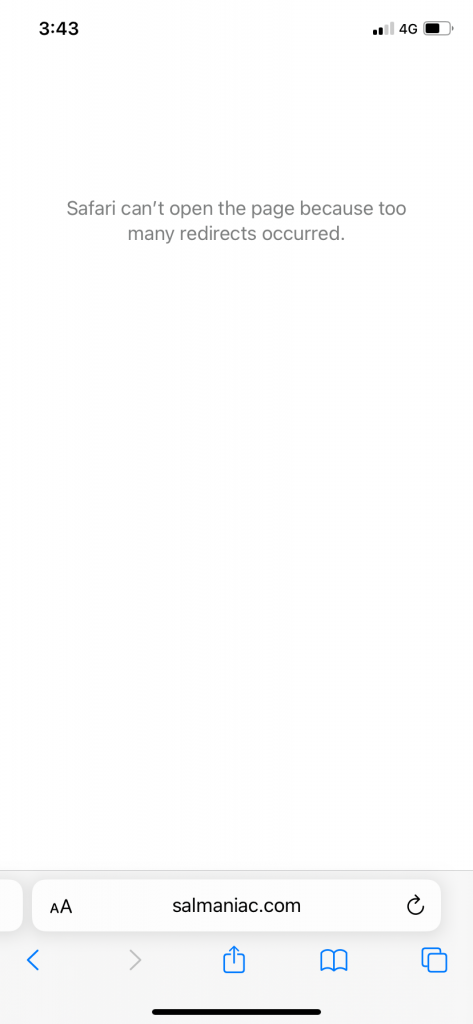
On Safari, when the “ERR_TOO_MANY_REDIRECTS” error occurs, an error page will appear with a message such as:
“Safari can’t open the page because too many redirects occurred.”
Google Chrome
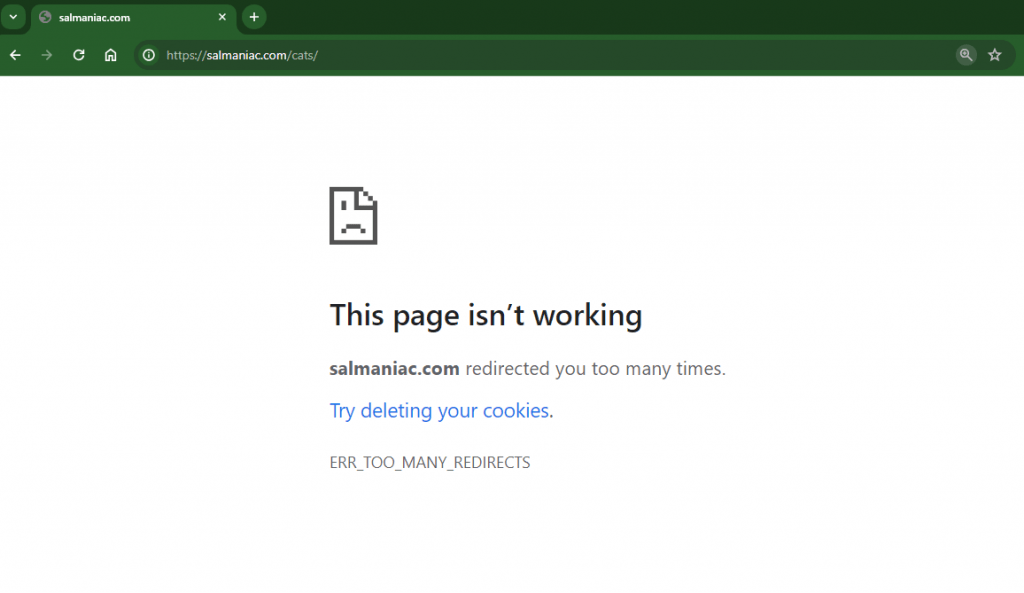
On Google Chrome, when the “ERR_TOO_MANY_REDIRECTS” error appears, there will be an error page with a message such as:
“This page isn’t working. [Website URL] redirected you too many times.”
Microsoft Edge
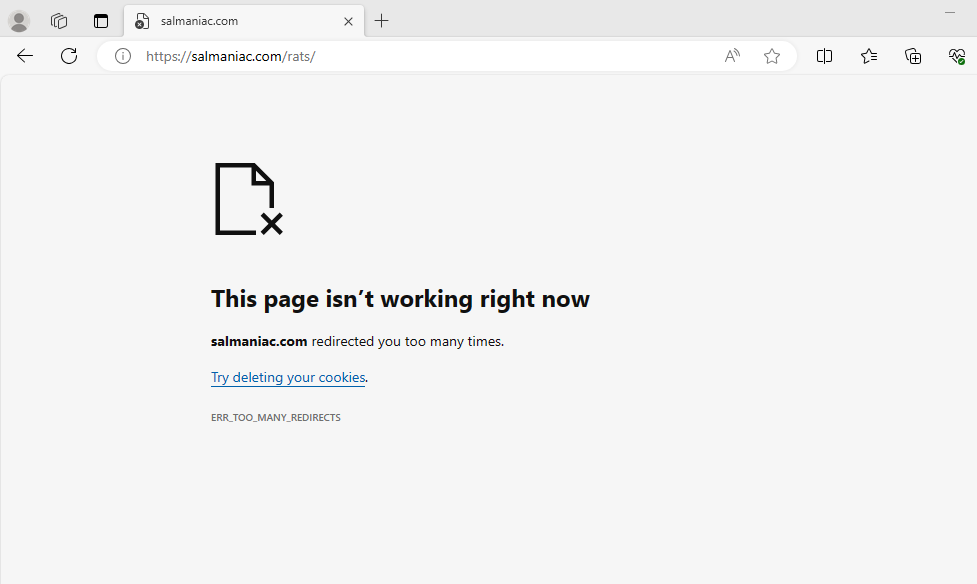
On Microsoft Edge, when the “ERR_TOO_MANY_REDIRECTS” error occurs, there may be an error page with a message such as:
“Hmmm… can’t reach this page. [Website URL] redirected you too many times.”
??Mozilla Firefox
On Firefox, the error message appears as: “The page isn’t redirecting properly.”
Firefox detected that the server is redirecting the request for this address in a way that will never complete.
Step-by-Step Diagnosis: Find the Source of the Loop
Before applying fixes, you must diagnose where the loop originates. Blindly editing files can waste time or break your site. Follow this diagnostic sequence:
1. Use Your Browser’s Developer Tools (The Quickest Method)
- Open your browser’s Developer Tools (F12 in most browsers).
- Navigate to the Network tab. Ensure the recording (often a circle icon) is active and “Preserve log” is checked.
- Try accessing the problematic URL in the same tab.
- You will see a cascade of requests in the Network tab. Look at the “Status” column for a series of “301” or “302” status codes (which indicate redirects) followed by a final error. Click on each request to see the “Headers” tab, specifically the “Response Headers,” which will show the Location header telling the browser where to go next. This visual chain shows you the exact URLs bouncing back and forth.
2. Use the cURL Command (For a Clean, Command-Line View)
- Open your terminal or command prompt.
- Run the command: curl -I -L http://yourdomain.com/problem-page
- -I fetches only the HTTP headers.
- -L tells cURL to follow redirects.
- The output will list each hop in the redirect chain. By default, cURL follows up to 50 redirects before stopping. If you see the same URLs repeating in the output, you’ve confirmed a redirect loop.
3. Use a Free Online Redirect Checker Tool
- Tools like Redirect Checker (by Ahrefs or others) allow you to enter a URL and will trace the redirect path. These are excellent for non-technical users as they visually map the loop and often highlight the conflicting jump (e.g., from HTTPS back to HTTP.
How To Fix The ERR_TOO_MANY_REDIRECTS Error
Once you spot the signs of a redirect error, it’s important to fix the issue immediately to avoid loss of website traffic. Follow the troubleshooting steps below. Start with Step 1 and proceed only if the error persists.
Step 1: Clear ALL Caches (Not Just Your Browser)
The error can be trapped in a cache. Clear them all, starting farthest from the user:
- CDN Cache: If you use Cloudflare, log into your dashboard, navigate to the Caching section, and select “Purge Cache” or “Purge Everything.”
- Server / Hosting Cache: Use your hosting control panel (e.g., cPanel) to clear any server-side caching (e.g., “Varnish,” “OPcache”).
- Application Cache: In WordPress, clear your caching plugin’s cache (e.g., W3 Total Cache, WP Rocket) or disable the plugin temporarily.
- Browser Cache & Cookies: Finally, clear your browser’s cache and specifically delete cookies for the problematic site, or test in a fresh Incognito/Private browsing window.
Step 2: Resolve SSL & CDN Configuration Conflicts
This fixes the majority of modern redirect loops.
- Verify Your SSL Certificate: Use an online SSL checker to confirm it’s valid, issued for the correct domain (covering both www and non-www versions), and properly installed on your origin server.
- Configure Your CDN Correctly:
- Log into your CDN dashboard (e.g., Cloudflare).
- Go to SSL/TLS > Overview.
- If your origin server has a valid SSL certificate, change the SSL/TLS encryption mode from “Flexible” to “Full” or “Full (strict).” This ensures the CDN connects to your server via HTTPS, eliminating the conflict.
- Consolidate HTTPS Redirect Rules: Ensure only ONE system is responsible for forcing HTTPS. If your CDN is set to “Full,” remove any “Force HTTPS” rules from your WordPress plugin (like Really Simple SSL) and rely on your server’s .htaccess or a single, clean redirect rule.
Step 3: Audit and Fix Redirect Rules
If the loop persists, the issue is in your redirect rules.
- Check Server Configuration Files:
- For Apache servers, examine the .htaccess file in your website’s root directory. Look for RewriteRule directives related to HTTPS, WWW, or the specific page path. Comment out rules (by adding a # at the start of the line) to test.
- For Nginx servers, the rules are in your server block configuration (e.g., sites-available/your-site). Look for return 301 or rewrite directives.
- Deactivate WordPress Plugins (The Health Check Method):
- Use the WordPress Health Check & Troubleshooting plugin. It allows you to deactivate all plugins only for your admin session without affecting visitors. If the error stops, reactivate plugins one by one to find the culprit.
- Check Core WordPress Settings:
- Go to Settings > General. Ensure both “WordPress Address (URL)” and “Site Address (URL)” are identical and use the correct protocol (https://).
How To Prevent The “Too Many Redirects” Error in The Future?
Once you’ve addressed the error, it’s worth taking steps to prevent it from re-occurring in the future. To prevent the “Too Many Redirects” error, follow these steps:
- Carefully Configure Redirects: Ensure redirect rules are set up correctly and avoid creating conflicting or circular redirects.
- Test Redirects Thoroughly: Before making changes live, thoroughly test redirects to ensure they are functioning as intended.
- SSL Certificate Services: Sometimes a secure socket layer can prevent excessive redirects. Using a qualified SSL Certificate Service could help prevent future redirect loops.
- Regularly Review and Update Redirects: Periodically review and update redirects as needed, especially when making changes to a website’s structure or URL paths.
- Monitor Website Performance: Keep an eye on website performance and user feedback to quickly identify and address any redirect issues.
- Implement Proper Error Handling: Use appropriate error handling mechanisms, such as error logging or exception handling, to guard against unexpected scenarios and prevent redirect loops.
- Stay Updated: Stay informed about best practices and keep updated on the latest redirect management tips.
If All Else Fails, Contact the Web Host
If the advice in this guide fails to solve the error, it may be worth contacting the website’s hosting provider, which may be able to lend additional assistance in resolving the redirect loop issue.
With KnownHost as your hosting provider, you receive lightning-fast coverage with readily available support at all hours of the day – as well as industry-best uptimes. For more information check out our web hosting services.
If you are experiencing redirect errors and find yourself unable to solve the issue alone, our support services may be able to assist you.
What Do I Do if I Receive the ERR_TOO_MANY_REDIRECTS Error?
If you experience the ERR_TOO_MANY_REDIRECTS error as a website user – either on your own website or another – there are several ways you may be able to fix it. The most common solutions include:
Delete Cookies Site Cookies and Clear Server, Proxy, and Browser Cache
- For Chrome: To delete a website’s cookies in Chrome, go to Settings > Privacy and security > Clear browsing data, select “Cookies and other site data,” then click “Clear data” and “Caches Images and Files”
- For Safari: To delete a website’s cookies in Safari, go to Safari > Preferences > Privacy, click “Manage Website Data,” select the website, and click “Remove” or “Remove All.” Next, select “Show Develop Menu” from Preferences and click “Empty Cache”.
- For Microsoft Edge: To delete a website’s cookies in Microsoft Edge, go to Settings > Privacy, search for “Cookies,” click “Choose what to clear,” select “Cookies and other site data,” and “Cached data and files”, then click “Clear.”
Frequently Asked Questions
Q: How Do You Diagnose Too Many Redirects?
A: To diagnose and troubleshoot issues related to too many redirects, clear the browser cache and cookies, check for incorrect URL configurations or infinite redirect loops, ensure correct server settings, and inspect network traffic using browser developer tools or network analysis tools to identify the source of the redirects.
Q: Is There a Way to Disable Redirects?
A: Yes, server redirects can be disabled in various contexts. Browser extensions or settings can block redirects in web browsers, and network configurations can modify DNS or firewall rules. However, disabling all redirects as a blanket rule may have negative consequences for website functionality and accessibility – so, broken redirect rules should instead be fixed individually.
Q: How Do I Remove a Redirect From a URL?
A: To remove a redirect from a URL, access the server or configuration responsible for the redirect, locate the relevant file or configuration (e.g., ‘.htaccess’), remove the lines or rules associated with the redirect, and save the changes. Test the URL to ensure the redirect is no longer present.
Q: Should I Delete Old Redirects?
A: It is generally recommended to delete old redirects that are no longer needed or relevant. Removing unnecessary redirects can help simplify a website’s structure, improve performance, and make it easier to manage. However, it’s important to consider any potential impact on SEO or user experience before making changes.
How to Log in to the WordPress Dashboard - KnownHost
April 10, 2024 at 8:16 am[…] database or update the URL settings via the ‘wp-config.php’ file.To find out more about the Too Many Redirects error – and how to resolve it – check out our helpful […]
ERR_SSL_PROTOCOL_ERROR: How to Fix it - KnownHost
April 16, 2024 at 6:51 am[…] to other connection errors, but has a different cause and meaning. If you receive the code ‘ERR_TOO_MANY_REDIRECTS’, this may be a server redirecting issue instead of an SSL […]