


How to Fix ECONNREFUSED Server Error in FileZilla
FileZilla is one of the leading open-source file transfer protocol (FTP) applications, that helps transfer files between computers. However, it’s not uncommon for users to encounter a cryptic ‘ECONNREFUSED’ error when attempting to move files. This error means the server actively refused the connection attempt. While your connection settings might seem correct, the underlying cause is often more nuanced.
In this article, we’ll explain what the ECONNREFUSED error is, why your FTP may have been refused by the target server and how to solve the ECONNREFUSED error.

What is the ECONNREFUSED Error?
The ECONNREFUSED error is a network-related error code relating to online file transfer protocols.
The error code flags when a user attempts to send a file through FileZilla but it fails to establish a transmission control protocol (TCP) connection with a server, and the server actively refuses the connection.
This error typically indicates that the server is reachable but not listening on the specified port, or that a firewall is actively rejecting the connection.
Before attempting a TCP verification, it’s important to verify the server’s availability, check the correct port number, and evaluate the network configuration for any issues or restrictions that might cause a connection refusal.
Terms Explained
- TCP: TCP stands for ‘transmission control protocol’ and is responsible for establishing and maintaining a reliable connection between devices over a network.
- FTP: FTP stands for ‘file transfer protocol’ and is a standard network protocol used for transferring files between a client and a server on a computer network.
- Port Number: A port number is a number used to distinguish specific processes or services running on a computer or network device. Regarding networking, a port number is associated with a specific protocol (like a TCP). Port numbers generally range from 0 – 65535.
Why is my FTP Connection Refused?
There could be several reasons why your FTP connection is being refused. Some common causes include:
- An incorrect server address or port number.
- A firewall blocking FTP traffic.
- An FTP server not running or configured properly.
- Network connectivity issues.
- The server explicitly rejects the connection request.
It’s important to double-check your connection and ensure that your ECONNREFUSED errors aren’t caused by the above issues before attempting further troubleshooting.
How Do I Fix ECONNREFUSED Server Error in FileZilla?
If the ECONNREFUSED error is still happening, several steps can be taken to potentially solve the issue.
Where does the TCP connection fail?
- Immediately, on connect
– Control channel failure (Phase 1) - After login, during file listing or transfer
– Data channel failure (Phase 2)
Important:
ECONNREFUSED can occur on either the control port (21) or the data port (passive/active).
It is not exclusive to the control connection.
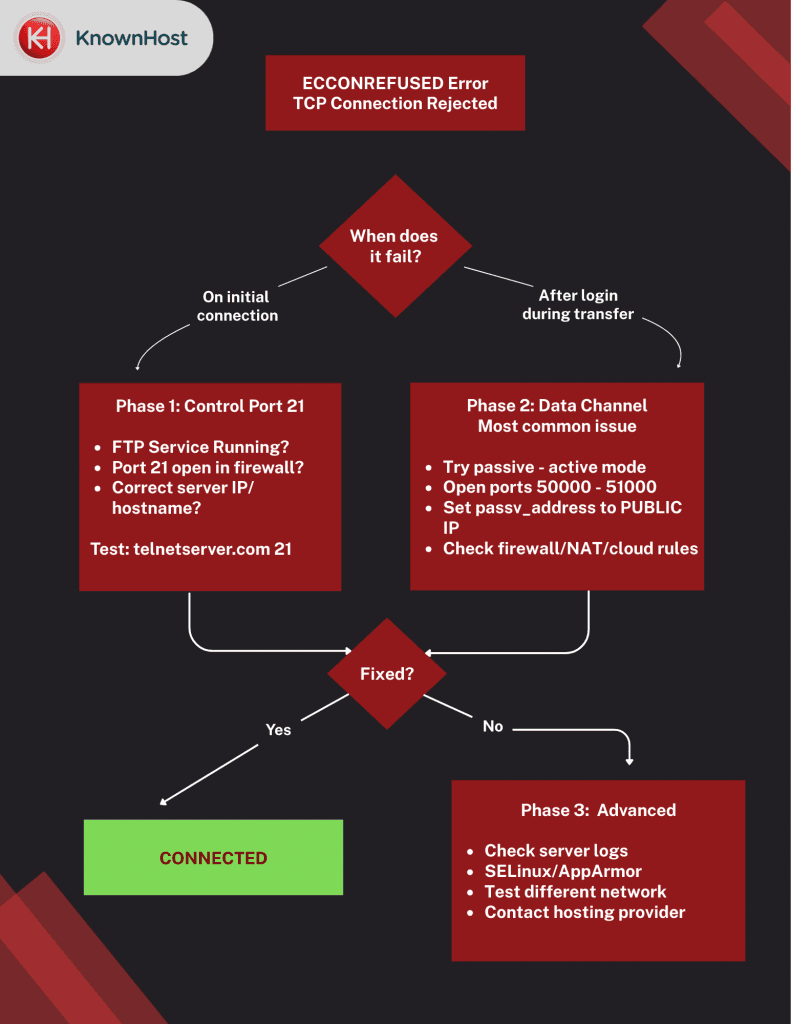
Note: PowerShell’s Test-NetConnection is preferred on modern Windows systems.
Phase 1: Control Channel Failure (Port 21)
The FTP server refuses or does not accept the initial TCP connection.
Check:
- Is the server hostname or IP correct?
- Is the FTP service actually running?
- Is it listening on the expected port?
- Is a firewall or cloud security group blocking port 21?
- Is the server bound to the correct interface?
Direct test:
telnet yourserver.com 21

# or

nc yourserver.com 21
Expected result:
A connection opens and the FTP banner is displayed.
If this fails with ECONNREFUSED, the problem is definitely one of:
- Service not running
- Wrong port
- Firewall / security group
- Incorrect bind address
Phase 2: Data Channel Failure (Passive / Active)
You can log in, but file listings or transfers fail.
This is the most common real-world FTP failure mode.
Why this happens:
FTP uses two connections:
- Control channel (port 21)
- Data channel (dynamic ports)
In Passive (PASV) mode:
- The server opens a random high port
- The client connects to it
In Active mode:
- The server connects back to the client
Either mode can fail due to firewall, NAT, or routing issues.
Check:
1. Try switching modes
- Toggle between Passive and Active in your FTP client
- If one mode works and the other fails, this is a data-channel networking issue
2. Passive mode requirements
The server must:
- Have a defined passive port range
- 50000 – 51000 for medium deployment
- 49152-65535 (IANA standard)
- Actually listen on those ports
- Allow those ports through the firewall
- Advertise the correct public IP address (not a private NAT IP)
Typical server settings:
pasv_min_port=50000

pasv_max_port=51000

pasv_address=YOUR.PUBLIC.IP
3. Firewall / NAT / Cloud security groups
- Open the passive port range on:
- Server firewall (iptables, firewalld, ufw)
- Router or NAT gateway
- Cloud security groups (AWS, GCP, Azure)
- Forward those ports if the server is behind NAT
4. When ECONNREFUSED happens in Phase 2
You can still get ECONNREFUSED during file transfer if:
- The server advertises a passive port that:
- Is not open
- Is not listening
- Is blocked by firewall
- Is misrouted by NAT or a load balancer
So:
ECONNREFUSED can be a data-channel error, not just a control-channel error.
Phase 3: Server Configuration & Host Security
If Phases 1 and 2 don’t fix it:
Check:
- FTP server logs
(/var/log/vsftpd.log, /var/log/proftpd/, etc.) - Is the FTP daemon actually listening on data ports?
- SELinux or AppArmor blocking FTP sockets
- System security hardening rules
- Incorrect external IP detection by the FTP daemon
- Load balancer or reverse proxy misrouting data connections
- Testing from a different network or ISP
Success or Escalation
- If Phase 1 or 2 fixes it = Success
- If not:
- Collect logs
- Note failing ports
- Document firewall rules
- Provide error output
If issues continue to persist after following these steps, then it may be necessary to consult the server administrator or hosting provider for further assistance.
For persistent server connectivity problems, third-party VPS hosting by Knownhost could be a cost-effective alternative.
A potential cause of an ECONNREFUSED error could be a DDoS attack. To prevent this situation from happening, adequate DDoS protection is required.
For additional safeguards against debilitating DDoS server attacks on your online business, check out Knownhost’s DDoS protection service. Protect a website’s availability, reputation and customer trust with our advanced DDoS mitigation technology.
Our expert support team is available 24/7 and provides customer service that suits your needs.
Frequently Asked Questions
Q: How Do I Install a FileZilla Server?
A: To install FileZilla Server, download the installer from the official website, run the installer, and follow the installation prompts. The prompts will also ask you to configure server settings, set up user accounts, and start the server to get it running.
Q: How Do I Configure a FileZilla Server?
A: To configure FileZilla Server, open the FileZilla Server interface, and navigate to the “Settings” tab. Here, you can adjust the server settings — including choosing the port number, setting security options, and adjusting user permissions. When you’re done, simply save the changes.
Q: What Does ‘Could Not Connect to Server’ Mean?
A: “Could not connect to server” could be due to various factors such as incorrect server address, firewall restrictions, or server unavailability.